
Updating business hours on Google has become a basic but essential task for businesses in 2026. Before driving across town, booking a visit, or even making a phone call, most customers first check Google to see whether a business is open. When those hours are incorrect, the outcome is often immediate and costly: customers arrive at the wrong time and leave disappointed.
The business hours shown on Google come directly from your Google Business Profile. These hours do not update automatically. Any change to your schedule—whether it is for holidays, seasonal adjustments, special events, or permanent shifts—must be updated manually by the business owner or manager.
This article explains how business hours work on Google today, how to update them correctly, and why keeping them accurate matters more than ever for customer trust and real-world visits.
Why Accurate Business Hours Matter
Business hours are one of the most viewed details on a Google listing. For many people, they are the deciding factor in whether to visit a business or move on to another option.
When hours are incorrect, customers may arrive to find closed doors, reduced service, or unexpected delays. Over time, repeated experiences like this can damage trust. Even a well-run business can appear unreliable if its hours are outdated online.
From Google’s side, accurate hours help ensure search results reflect real-world availability. While Google does not promise higher rankings for updates, it consistently emphasizes complete and accurate information as a foundation for a reliable business listing.
Accurate hours help by:
-
Setting clear expectations before a visit
-
Reducing customer frustration
-
Limiting complaints caused by timing issues
-
Keeping information consistent across Search and Maps
How Business Hours Actually Work on Google
A common misunderstanding is that Google automatically updates business hours based on website content, social media posts, or user behavior. That is not how the system works.
Business hours on Google are primarily based on manual input. Owners and managers are responsible for keeping them correct. While Google may sometimes suggest edits or display notices like “Hours may differ,” those signals exist because the system lacks confirmed information.
Important points to understand:
-
Google does not regularly scan your website to update hours
-
Customer-suggested edits may appear if hours seem wrong
-
Holiday periods often trigger “hours may differ” warnings
-
Only confirmed updates from the business owner resolve these issues
Because of this, regular review is essential.
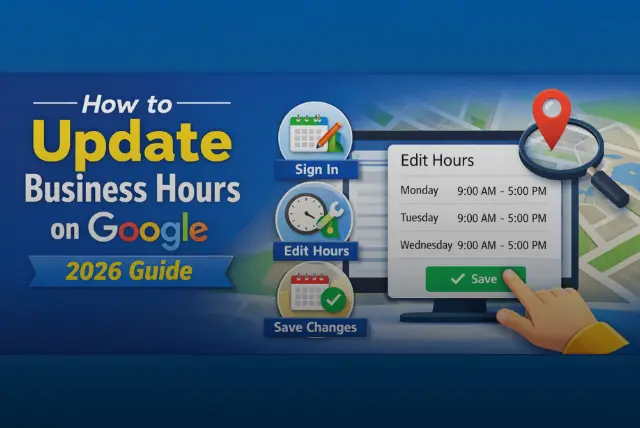
How to Update Business Hours on Google
Updating business hours is straightforward, but accuracy matters.
To update your hours:
-
Sign in to your Google Business Profile
-
Select the business location you manage
-
Open the Info section
-
Find Hours
-
Edit opening and closing times for each day
-
Save your changes
After saving, updates usually appear once Google processes them. The timing can vary, so changes should be made in advance whenever possible.
Using Special Hours for Holidays and Temporary Changes
Special Hours are meant for dates when your regular schedule does not apply. These include public holidays, festivals, one-day closures, or short-term schedule changes.
Special hours do not replace your regular hours. They override them only on the selected dates, which helps prevent long-term mistakes.
To set special hours:
-
Open your Google Business Profile
-
Select the correct location
-
Go to Info → Special Hours
-
Add specific dates and hours or mark the business as closed
-
Save
Using this feature correctly reduces confusion and helps customers plan visits with confidence.
Managing Business Hours for Multiple Locations
Each business location on Google is treated as a separate listing, even when owned by the same company. This means hours must be reviewed and updated for each location individually.
In practice:
-
One location may have different holiday hours than another
-
Seasonal schedules may vary by area
-
Errors at one location do not automatically affect others
Google provides a central dashboard for managing multiple locations, but accuracy still depends on manual review.
Common Issues and How to Avoid Them
Hours Not Updating
Changes may take time to appear. If they do not:
-
Confirm you have owner or manager access
-
Check that changes were saved correctly
-
Review whether a user-suggested edit is causing conflict
Duplicate Listings
Multiple listings for the same business can show different hours. These should be merged or removed to prevent confusion.
“Hours May Differ” Messages
This usually appears when Google lacks confirmed holiday or special-hour data. Adding verified special hours often resolves it.
Business Hours and Local Search Visibility
Google uses business information to help users find relevant local results. While there is no guarantee that updating hours improves rankings, inaccurate or inconsistent information can reduce user engagement.
Accurate hours support visibility by:
-
Reducing abandoned visits
-
Increasing trust in the listing
-
Encouraging users to take action, such as requesting directions or calling
Consistency across platforms matters more than frequent edits.
Mistakes Businesses Commonly Make
Many issues with business hours come from small oversights rather than technical problems.
Common mistakes include:
-
Forgetting to update holiday hours
-
Leaving old seasonal schedules active
-
Showing different hours on Google and the business website
-
Assuming Google will update hours automatically
Avoiding these errors requires regular review, not advanced tools.
Letting Customers Know About Hour Changes
Updating Google is important, but it should not be the only step. Regular customers may rely on other channels.
Helpful ways to communicate changes include:
-
Posting updates through Google Posts
-
Updating hours on your website
-
Sharing changes on social media
-
Displaying clear signage at your location
Clear communication reduces confusion and builds trust.
Best Practices for 2026 and Beyond
To keep hours accurate over time:
-
Review your hours before major holidays
-
Keep schedules consistent across all platforms
-
Assign one person to manage updates
-
Pay attention to customer feedback related to timing
These habits help maintain reliability without extra effort.
Conclusion
Updating business hours on Google is not about optimization tricks or shortcuts. It is about accuracy and trust. Customers depend on this information to plan visits, and businesses are responsible for keeping it correct. In 2026, a few minutes spent reviewing business hours can prevent lost visits, protect your reputation, and ensure customers know exactly when to expect you.
FAQs
How long does it take for updates to appear on Google?
Updates usually appear after processing, though timing can vary.
Can different services have different hours?
Yes. Separate listings may be created for services that operate independently.
What if my hours change often?
Update the profile as changes occur and use posts for temporary notices.
How do I show a temporary closure?
Use special hours or mark the business as temporarily closed.
Can business hours be updated from a mobile phone?
Yes. Hours can be edited through the Google Business Profile mobile app.