

Microsoft Outlook is one of the most widely used email clients in corporate environments. Its security features are robust, and its seamless integration with MS Word gives it a significant advantage over others. But what truly contributes to Outlook’s success? The core strength lies in its file formats—OST and PST. Both play a vital role in mailbox data management. PST (Personal Storage Table) files are used to archive email data, while OST (Offline Storage Table) files interact with the Exchange server and allow users to recover crucial data in case of server outages.
It’s important to note that Outlook data files (.ost) are highly encrypted and linked to a particular profile and environment. However, these files can sometimes become orphaned or inaccessible. Factors like oversized file size, profile-related issues, Outlook synchronization errors, or malware attacks can make an OST file unusable. This not only causes operational issues but also puts sensitive data at risk. In such scenarios, converting OST to PST becomes essential. It’s equally important for Outlook users to know how to save Outlook emails safely. This guide will help you choose the most efficient and risk-free method for OST to PST conversion.
Why OST to PST Conversion is Required?
Some common scenarios where OST to PST conversion is necessary include:
- Server Downtime: During server downtime, Outlook users cannot access their mailboxes. By converting an OST to PST, they can access their emails locally.
- Archiving Purpose: Users often archive older messages and data from an OST file for backup or when transferring data to another device.
- New Email Client: When moving to an email client that doesn’t support OST files.
- Inaccessible OST: If the OST file becomes corrupted or inaccessible, conversion is required to restore access.
Manual Methods to Convert an OST to PST Format:
While Microsoft doesn’t provide a direct OST to PST conversion tool, Outlook offers some built-in functionalities. Users can try the following manual methods:
Note: The built-in Import/Export and AutoArchive options described below are available only in classic Outlook. The new Outlook for Windows no longer supports .ost/.pst files or the Import/Export wizard, so if you are on the new app you will need to switch back to classic Outlook or use a dedicated converter tool.
Method 1: Using the Import/Export Wizard
Sign in to the Exchange profile where the OST file was originally created. Follow the below instructions:
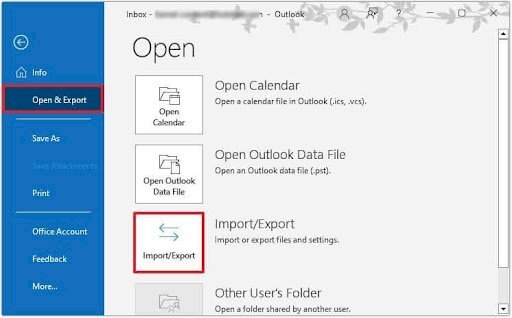
- Navigate to the “Files” tab.
- After this explore the “Open & Export” button.
- Then press “Import & Export.”
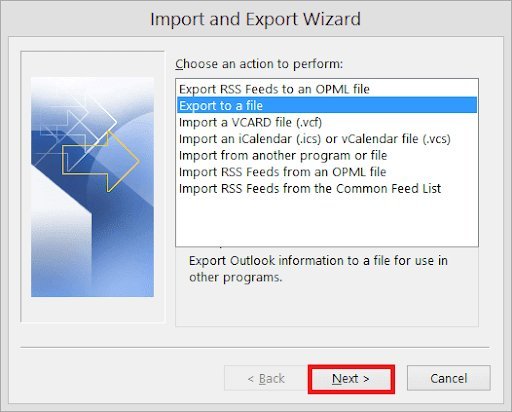
- A screen with dropdown will appear. Choose the “Export to a file” option. Then press “Next.”
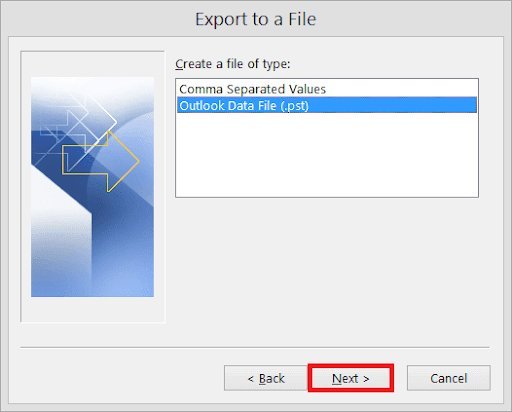
- A dialog box will pop up and ask for the export file type option.
- Select “Outlook Data File (.pst)” from the list.
- Press the “Next” tab to proceed.
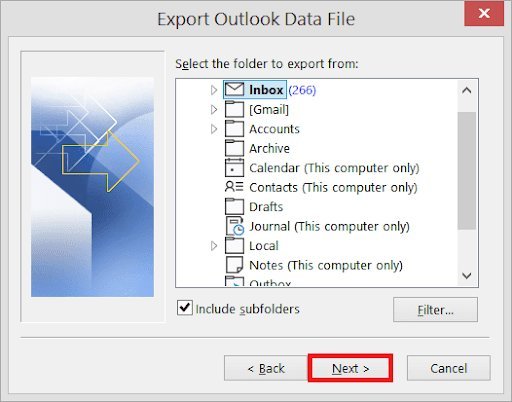
- Now select the folders and sub-folders that need to be exported.
- After the selection, hit on the “Next” tab.
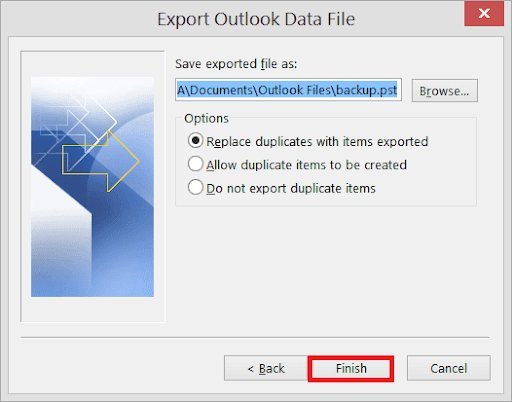
- Give the path of the folder where you need to save the exported file. Choose the ‘Replace duplicates with items exported’ option to avoid exporting the repeated content. Name the .pst file.
- Press ‘Finish’ to close the procedure.
Method 2- Using the Archiving Method
Another functionality provided by the Outlook is AutoArchive feature. It is also used to convert an Outlook data file (.ost) to PST format. This method ensures mailbox content transfer at regular intervals. Follow the below steps:
- Browse the application.
- Navigate to the ‘File’ menu.
- Click on the ‘Archive’ option.
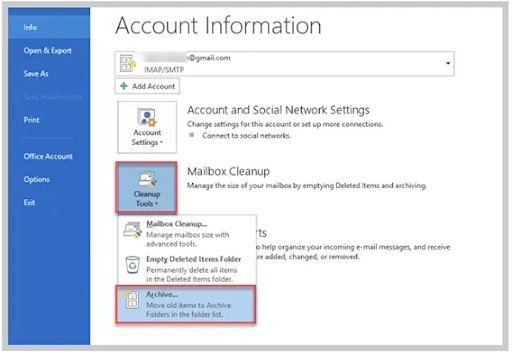
- A screen will appear.
- Select the required file or folder.
- Now go to the folder where such archived file needs to be saved.
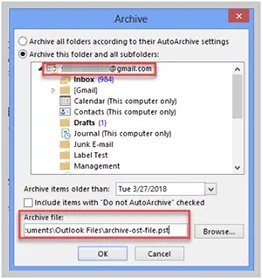
- Finish off the process by hitting on the ‘Finish’ tab.
Method 3: Drag and Drop Mailbox Items
It is one of the easiest manual methods of .ost to .pst conversion. The user first needs to create a blank PST file. After this, he or she needs to drag and drop the chosen mailbox content from an OST file to this newly-created folder.
The step-by-step guide is given below:
- Open the MS Outlook app.
- Browse both files (OST and PST).
- Select the folders that need to be moved to PST from the OST file.
- Drag & drop the chosen file folders (into the PST file).
Drawbacks of the Manual Approach:
- Time Consuming: Manual methods can take a lot of time, especially for large files.
- Technical Expertise: These methods require technical knowledge. A wrong step could risk data loss.
- Data Loss Risks: There is always a chance of losing crucial data during manual conversion.
- File Limitations: These methods won’t work for orphaned, severely corrupted, or inaccessible OST files.
What is Automated OST to PST Conversion?
To overcome the limitations of manual methods, automated OST to PST converter tools are widely used. A reliable OST to PST converter can quickly and safely convert even oversized, inaccessible, or orphaned OST files. Tools like Stellar Converter for OST are recommended by IT professionals because they use advanced algorithms, preserve folder structure, and come with a user-friendly interface that requires minimal technical knowledge.
Manual vs. Automated OST to PST Conversion: What’s the Best Approach?
Before starting any conversion process, always create a backup of the OST file. Next, evaluate the size and type of data you need to convert:
- Data Volume: For small-scale conversions (a few messages or folders), manual methods like Drag & Drop, Import/Export, or AutoArchive may be sufficient. For large files, automated tools are far more efficient.
- Technical Expertise: Manual methods require technical skill, while automated tools are designed with a simple interface that anyone can use with ease.
Back Up Before You Start

Image source: pexels.com
Before trying any conversion, copy the OST file to a safe location and, if possible, note the account settings. Working on a copy means a failed attempt cannot make things worse, and it gives you a fallback if the original file is damaged further.
When Re-Syncing Is Easier

Image source: pexels.com
If the mailbox still exists on Exchange or Microsoft 365, you often do not need to convert the OST at all. Re-adding the account in Outlook downloads a fresh copy, and administrators can export mailboxes directly. Conversion tools are mainly useful when the account has been deleted or the server is unavailable.
Protecting Personal Data

Image source: pexels.com
Mailboxes contain personal and business data, so under UK GDPR organisations must keep exported PST files secure. Use reputable software, avoid uploading mailboxes to unknown online converters, encrypt PST files stored on shared drives and delete copies you no longer need. For more on online safety, see our guide to staying safe online.
How We Keep This Guide Up To Date

Image source: pexels.com
Rules, prices and services change, so we review guides like this regularly and update them when official sources change. Where the law or official guidance is involved, the relevant government or regulator’s website is always the final word, and it is worth checking there before making an important decision. If something here has changed, the official source will reflect it first.
A Quick Checklist Before You Decide

Image source: pexels.com
Before acting on anything in this guide, run through three quick checks. First, is the information current, and does it apply where you live in the UK, since rules often differ between England, Scotland, Wales and Northern Ireland? Second, have you compared more than one option or provider? Third, do you need professional advice for your specific situation? Taking ten minutes over these questions avoids most expensive mistakes.
Conclusion
We have explored the scenarios where OST to PST conversion is required and the different methods available. While Outlook provides manual methods such as Import/Export, AutoArchive, and Drag & Drop, these approaches can be time-consuming, require technical expertise, and carry the risk of data loss. Automated tools like Stellar Converter for OST offer a faster, safer, and more reliable solution. They not only simplify the process but also ensure that the original folder structure and data integrity are preserved.
FAQs
FAQ 1: Why do I need to convert an OST file to PST?
Answer: To open emails when the server is down or the OST file is not working.
FAQ 2: Can I convert an OST file to PST without Outlook?
Answer: No, you need Outlook or a special converter tool.
FAQ 3: What are the limits of manual OST to PST conversion?
Answer: It’s slow, needs some tech knowledge, and may lose data.
FAQ 4: How do I convert a large OST file to PST?
Answer: Use a converter tool because manual ways may fail.
FAQ 5: Is it safe to use OST to PST converter tools?
Answer: Yes, if you use trusted software from a good provider.